Showing posts with label Tutorial. Show all posts

Thursday, January 10, 2019

Tutorial Penggunaan Software XAMPP Serta Cara Membuat Database dengan Xampp

Software XAMPP yaitu perangkat lunak yang didukung banyak sistem operasi, yang merupakan campuran dari beberapa program. Xampp telah mengalami perkembangan dari waktu ke waktu.versi yang terbaru adalah revisi dari yang terdahulu,sehingga lebih baik dan lebih lengkap. Aplikasi utama dalam paket Xampp yakni terdiri atas web server Apache, MySQL, PHP, dan PHPMyAdmin. dan mempunyai fungsi sebagai server yang  berdiri sendiri (localhost), yang terdiri dari program MySQL database, Apache HTTP Server, dan penerjemah ditulis dalam bahasa pemrograman PHP dan Perl.
Software XAMPP merupakan singkatan dari X (empat sistem operasi), Apache, MySQL, PHP dan Perl. Program ini tersedia di bawah GNU General Public License dan bebas, adalah mudah untuk menggunakan web server yang dapat melayani tampilan halaman web yang dinamis. Jika ingin mendapatkan xampp dapat mendownload langsung dari situs resminya. Sebenarnya ada beberapa aplikasi untuk membangun website di lokalhost seperti MAMP, LAMP, dan WAMP, namun dari ke empat aplikasi tersebut menurut pusatdesainweb.com yang paling mudah digunakan dan dari segi interface yang paling baik adalah XAMPP.


Software Xampp  bisa disebut juga dengan "web server”, kenapa? karena software xampp ini dapat mengakses tanpa harus online atau internet. Langsung saja download terlebih dahulu XAMPP  di web resminya apache, Link yang diberikan di sini adalah link untuk system operasi windows, untuk link yang ada di system operasi yang lainnya. Berikut langkah-langkah  web server dengan menggunakan xampp. XAmpp sendiri  juga merupakan program (paket gratis) yang terdiri dari Apache web server dan MySQLuntuk web database yanga dapat digunakan dengan mudah.
Cara  Install Xampp di PC Anda  Sebagai Berikut :
1.    Klik 2 kali pada software xampp yang sudah anda download atau sudah ada di PC anda.
2.    Klik  Ok, untuk memilih bahasaĆ  English.
3.    Klik next pada setup wizard lalu pilih Folder untuk menyimpan xampp kemudian klik
4.    next.
5.    Maka tampil Xampp Option ceklis atau klik yang ada pada service section ke 3 nya lalu
6.    Klik Install.
7.    Kemudian Klik Finish

Lalu akan Klik Yes untuk menjalankan xampp control panel.
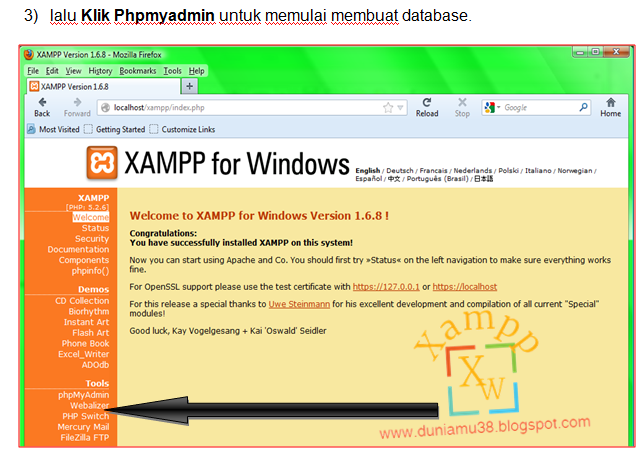
Berikut tutorial berikut bisa dilihat dibawah ini :


Mungkin itu saja tutorial dari saya, semoga bisa bermanfaat dan semoga lancar dalam menjalankan aplikasi xampp ini, sekian terimakasih..


Thursday, February 1, 2018

CONTROLING A COMPUTER FROM COMPUTER FROM OTHER

This can be just as useful as Remote Executor, FTP Manager, etc. But the difference is based on CUI (Code User Interface) if Remote Executor, FTP Manager mostly based GUI (Graphical User Interface) which is as easy as klak-click- klak-click etc.
In this article, I will give tutorials to remotely computer others with Virtual Network Connection (VNC).
There are times when our friends or family need our help to fix the computer / laptop that is error, but our friend is located in a place far enough for us to meet. If your friend's computer is still connected to the local network (LAN) or the Internet then we can still help without having to meet him. We can take control on his computer from our computer with Remote Desktop facility.
We can control / control a computer from a computer from another computer in a local computer network environment / Local Area Network (LAN) or via the Internet network.
The main requirement to be able to control other computers is each must be computer installed software client and server. Software to control the computer remotely is called Remote Desktop application.
In the Microsoft operating system starting from Microsoft Windows XP, Remote Desktop application is automatically installed when we install Windows XP. But to be able to run it we must make the settings first.
To run Remote Desktop, we need at least two computers (PCs) with the Remote Desktop application installed. How to do the settings are as follows.
To make it easier for us to understand how the settings and connections Remote Desktop, then I will give each masing2 computer is as follows:
o Your computer => CLIENT
o Computer Friends => SERVER
How to Setting in Computer SERVER
1. Right-click My Computer and select Properties. click the Remote tab then put a check mark on Allow users to connect remotely to this computer. Then click OK.
1. Open Windows Firewall settings, do I click Start> Control Panel> Windows Firewall, then click Exceptipns tab and put a checklist on writingRemote Desktop.

2. And finally make sure this computer has Administrator Password, if there is no way to make it is click Start> Control Panel> User Accounts, then click the name Useryang has a status as Computer Administrator. Click on Create a password, then enter the password you want and enter the same password below and click Create Password. If you have questions Do you want to make your files and folders private? click the Yes button, Make Private.
1. Note the IP address of this computer, how to click the symbol of Internet Connection / Local Area Connection in the lower right corner then click the Support tab and note the IP Address of this computer.
1. Note the User Name of this computer how to click Start then the user name will be seen on the top side of this Start Menu if Start Menu that you use is not Classic Start Menu.
Setting in the computer SERVER has been completed, now you can already connect Remote Desktop from your computer (CLIENT.
How to Connect Remote Desktop from a CLIENT computer
1. Run the Remote Desktop Connection app, how to click Start> All Programs> Accessories> Communications> Remote Desktop Connection.
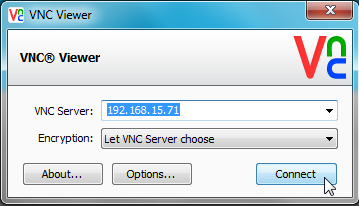
2. Click the Options >> button, enter hHstname / IP address of destination computer, User name and password of destination computer. For example as in the picture below, then click the Connect button.
If successful, on the screen you will see the same desktop as your destination computer. Now from here you can do any control using your mouse and keyboard.
In addition to Remote Desktop applications, there are other applications that can be alternative options with features that are more than just Remote Desktop and with better speed, such as Remote Administrator (Radmin) and Virtual Network Connection (VNC).
Note:
o If the destination computer uses a Speedy connection, then you must set Port Forwarding settings on the ADSL modem used by the SERVER computer. How to set Port Forwarding depends on the brand of ADSL modem respectively, for the instructions you can see at www.portforward.com as reference material. Find the instructions that match your brand and type of ADSL modem.
o In the event of Remote Desktop connection, the server computer can not perform activities because the server computer will be in a Log off position. It will be different if you use other software like Radmin and VNC.

Friday, June 17, 2016

Google Installer untuk Xiaomi Redmi Note 2 Indonesia


Silahkan anda unduh untuk Hp Xiaomi anda yang tidak bisa menjalankan playstore yang masih menggunakan ROM Developer China ini silahkan untuk aplikasinya

How to make Pasang PlayStore :
untuk prosedur.nya ikutin langkah-langkah berikut dibawah ini :
1. Anda silahkan  Download dulu aplikasi ini klik link ini Google_Installer
2. Letakakan di memori internal HP anda
3. Silahkan instal aplikasi File Manager di HP kemudian install aplikasi Google Installer tadi
4. Buka aplikasi Google Installer tersebut
6. Pada list Google Play pilih Install > OK
7. Akan muncul 4 list aplikasi yang perlu diinstall
8. Pilih ikon panah dibagian dibawah > Continue
9. Install keempat aplikasi tersebut. Jika muncul pilihan klik Yes/Accept saja terus. Jika muncul pilihan Launch dan OK maka pilih OK.
10. Biasanya Play Store nya belum bisa dibuka nih, bakal mental keluar terus. Supaya Play Store nya bisa dibuka silahkan lanjutkan langkah-langkahnya kebawah.
11. Buka Settings > Installed apps > cari Google Play Store > pilih Clear Data > lalu klik Ok
12. Setelah itu Reboot kembali saja